Parent Guide 👋
A simple, friendly walkthrough of Curriculum Reads — how to find the right book for your child and how to read it together.
🚀 Getting Started
Curriculum Reads is a digital picture-book library. It includes picture vocabulary books that build English vocabulary, and Korean Bilingual Program (KBP) books that support Korean language learning. No account or download is needed — your child can start reading right away.
- Open Curriculum Reads. You'll land on the library, showing every book as a cover you can click.
- Use the search box and filters at the top to find a book that fits your child.
- Click any book cover to open it like a real flipbook.
- Turn pages with the arrow buttons, the slider, or by swiping on a phone or tablet.
- Use the icons in the top corner to switch view modes, change the theme, or go fullscreen.
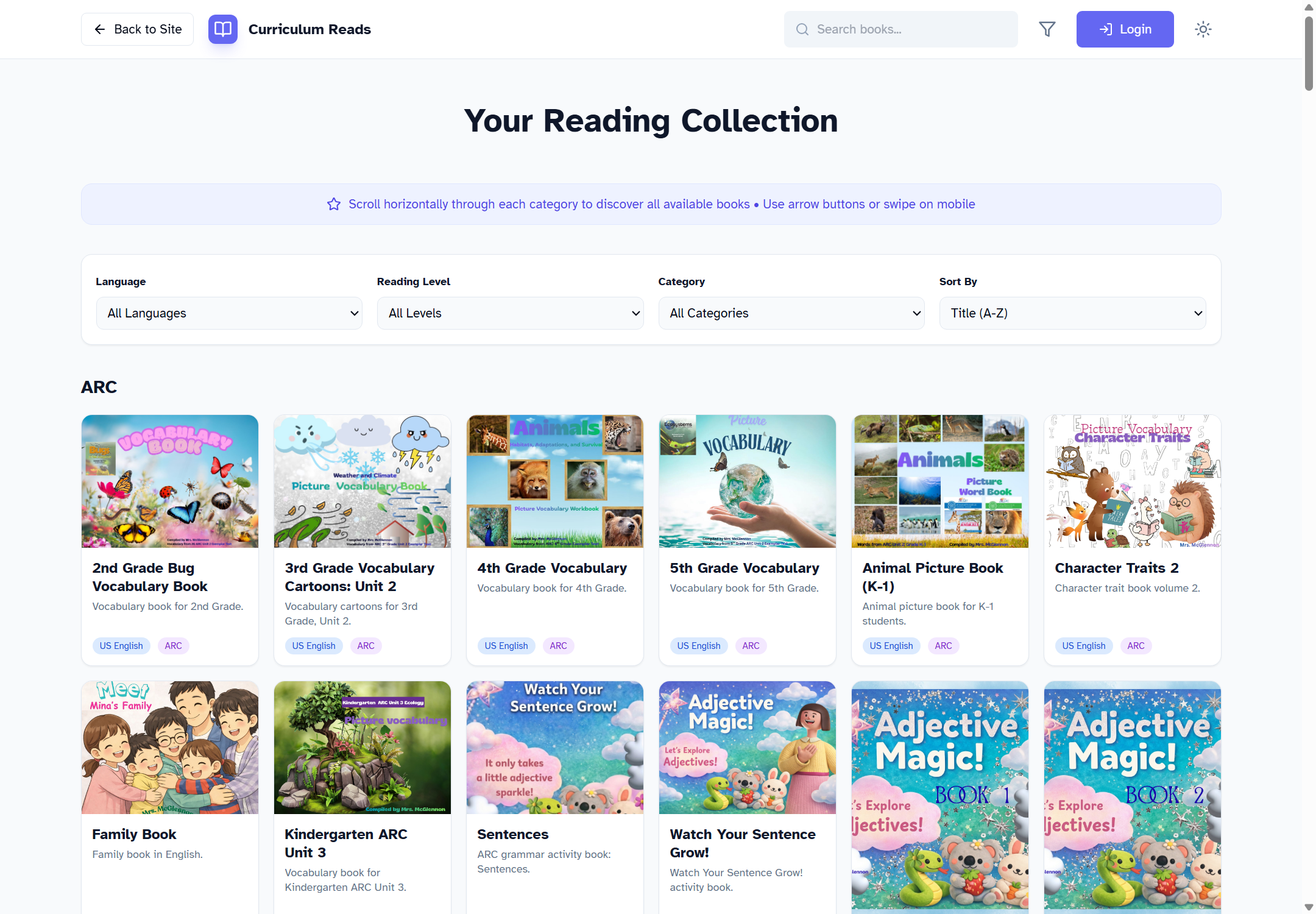
The library — every book is organized into categories you can browse or filter.
🔎 Finding the Right Book
The filter bar just below the library header is the fastest way to narrow things down to books that match your child's needs:
- Language — show only English or only Korean titles.
- Reading Level — beginner, intermediate, or advanced.
- Category — collections like ARC vocabulary units or KBP grade-level books.
- Search box (top right) — type a title or author to jump straight to it.
Once your child has opened a few books, a Continue Reading row appears at the top of the library so they can pick up right where they left off. You can remove a book from that row any time by hovering over its cover and choosing Remove.
📖 Reading a Book
Opening a book puts it on a virtual "stage" that looks and feels like a real flipbook, with simple controls docked at the top and bottom of the screen.
- Turn pages — use the ⟨ and ⟩ buttons, drag the page slider, type a page number, or press the arrow keys on a keyboard.
- Single vs. double page — the book icon in the header switches between viewing one page or two pages side-by-side (phones automatically use single-page).
- Light / dark mode — the sun/moon icon changes the reading theme.
- Fullscreen — the expand icon hides everything except the book, great for tablets. The first time, a short pop-up reminds you how to turn pages and exit (swipe or arrow keys to turn pages, Esc or the Exit button to leave).
- Library — click "Library" any time in the top-left to return to the bookshelf.
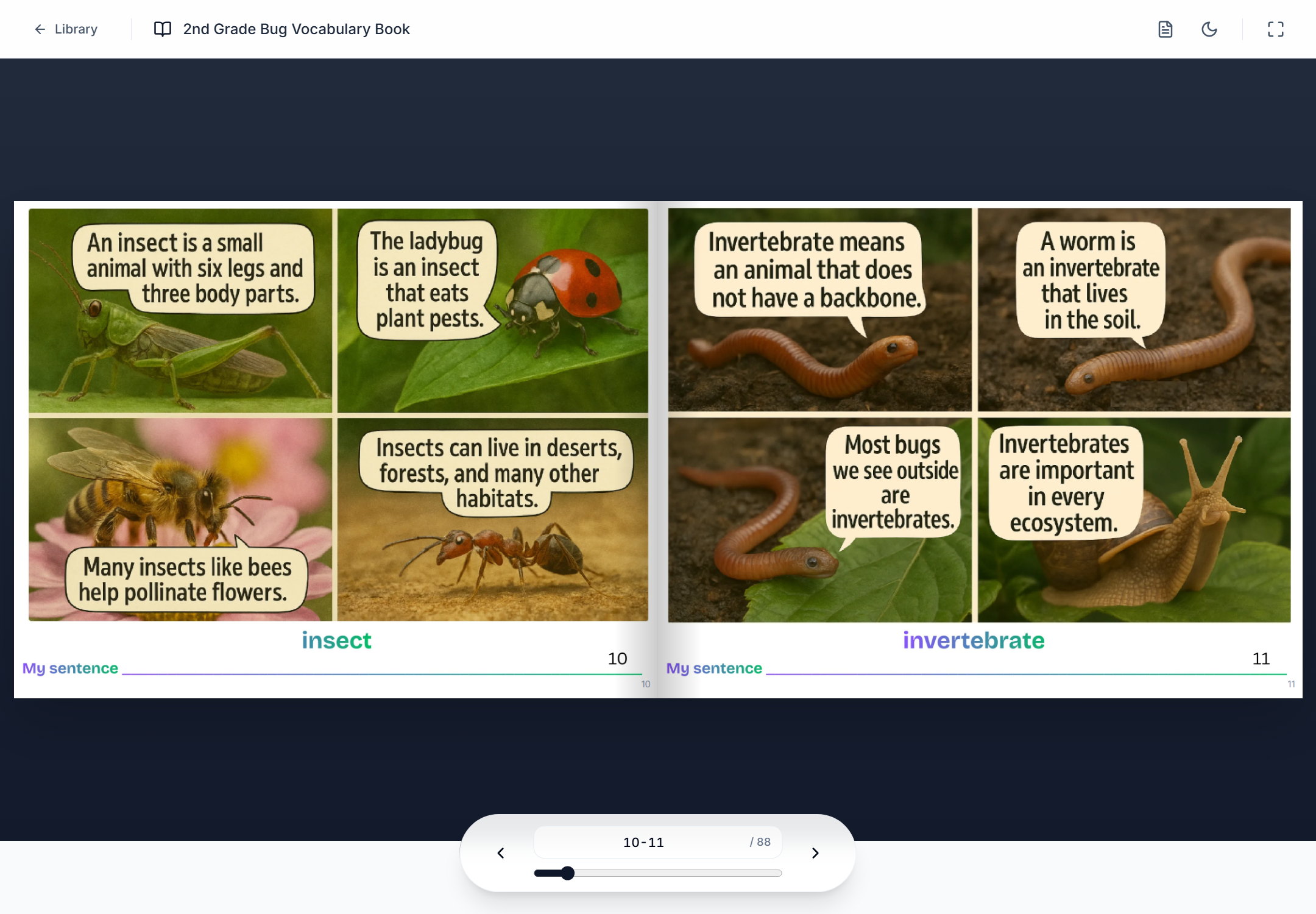
Reading view — page controls stay docked at the bottom so they're always within reach.
✨ Tips for Parents
- Filter by Reading Level first if you're not sure where to start — it's the quickest way to find age-appropriate books.
- On a tablet, try Fullscreen for a real book-like feel with fewer distractions.
- Double Page mode works well on a laptop or tablet; phones switch to single-page automatically.
- Dark mode is easier on the eyes for evening reading time.
- Recently opened books are always one click away in the Continue Reading row.
❓ Frequently Asked Questions
Do we need to create an account?
No. Curriculum Reads is ready to use immediately — no sign-up, no download.
Is my child's reading progress saved?
Yes — recently opened books are remembered on the device and browser they were reading on, so they can jump back in from the Continue Reading row.
Which browser works best?
Curriculum Reads works in any modern browser, but Chrome or Microsoft Edge give the smoothest experience.
A book won't open, or pages look broken. What should I do?
Refresh the page and check your internet connection — book pages are loaded as images and need a connection the first time they're viewed. If it still doesn't work, please reach out to Mrs. McGlennon.
What is the Login button for?
It's a teacher-only tool for managing the library and isn't needed for reading at home.
📘 Looking for Language Bridge?
Language Bridge is our side-by-side bilingual reader with read-aloud narration — a great fit for newcomer and multilingual learners.
Read the Language Bridge Parent Guide →