Parent Guide 👋
A simple, friendly walkthrough of Language Bridge — bilingual, side-by-side reading with read-aloud narration for multilingual learners.
🚀 Getting Started
Language Bridge shows a story in two languages side by side and can read either side aloud. It's designed for multilingual learners who are building English while staying connected to their home language. No account or download is needed.
- Open Language Bridge. You'll land on the library, showing every book as a cover you can click.
- Use the search box and filters to find a book that fits your child.
- Click a book cover. The first time you open a book, a quick setup screen helps you choose languages and voices.
- Press Play to hear the story narrated, or tap any sentence to jump straight to it.
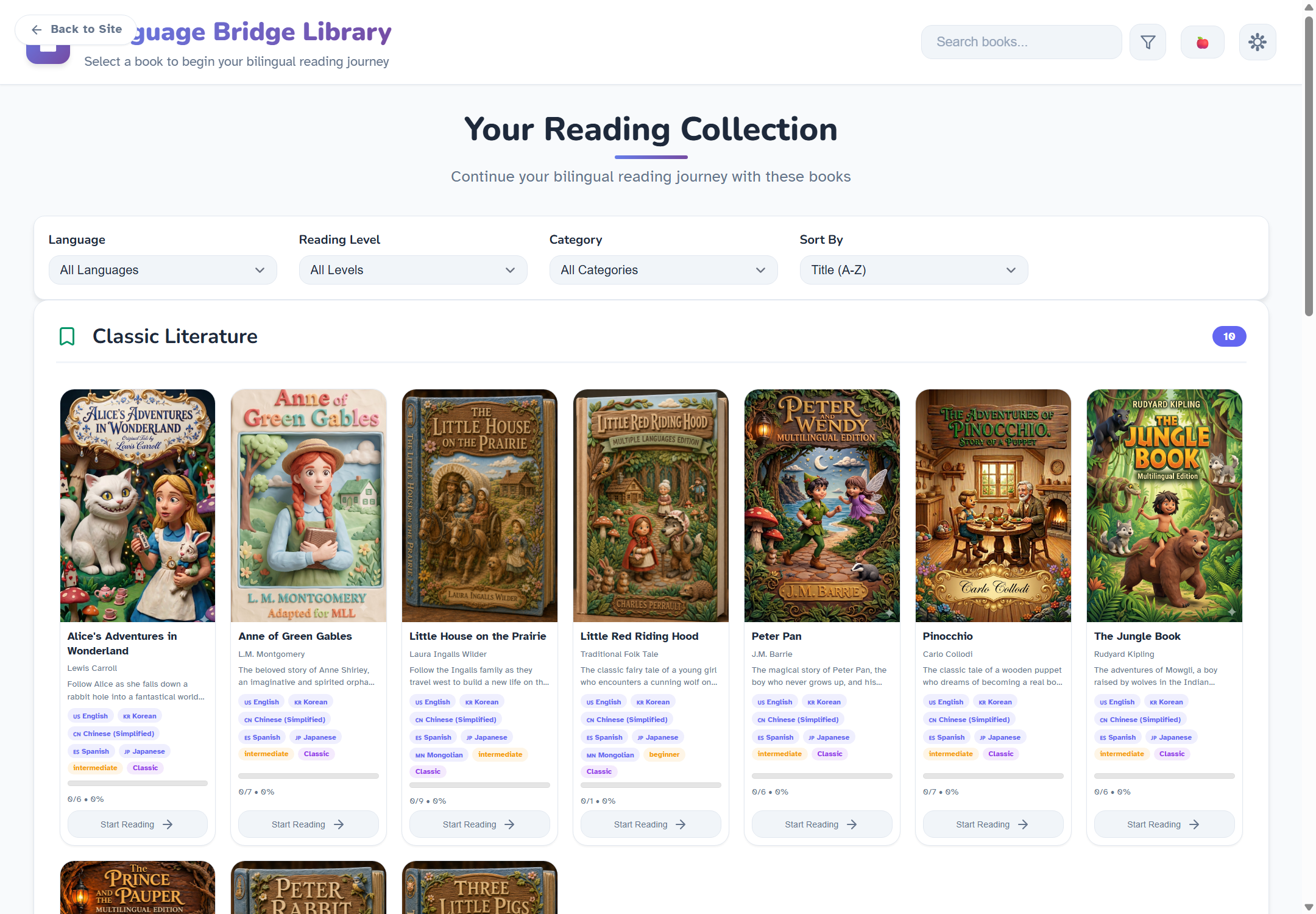
The library — search, filter by language/level/category, and continue recent books.
🎛️ First-Time Setup
The first time your child opens any book, a friendly Welcome screen appears so you can set things up together:
- First & Second Language — choose the two languages shown side by side (for example, English and Korean).
- Voices — pick a voice for each language and press Try Voice to hear a sample before deciding. Microsoft Edge offers the widest selection of natural-sounding voices.
- Sentence pause — an optional short pause between sentences, helpful for newer readers who need a moment to catch up.
- Skip Setup vs. Start Reading! — skipping just uses sensible defaults; nothing here is permanent, since everything can be changed later in Settings.
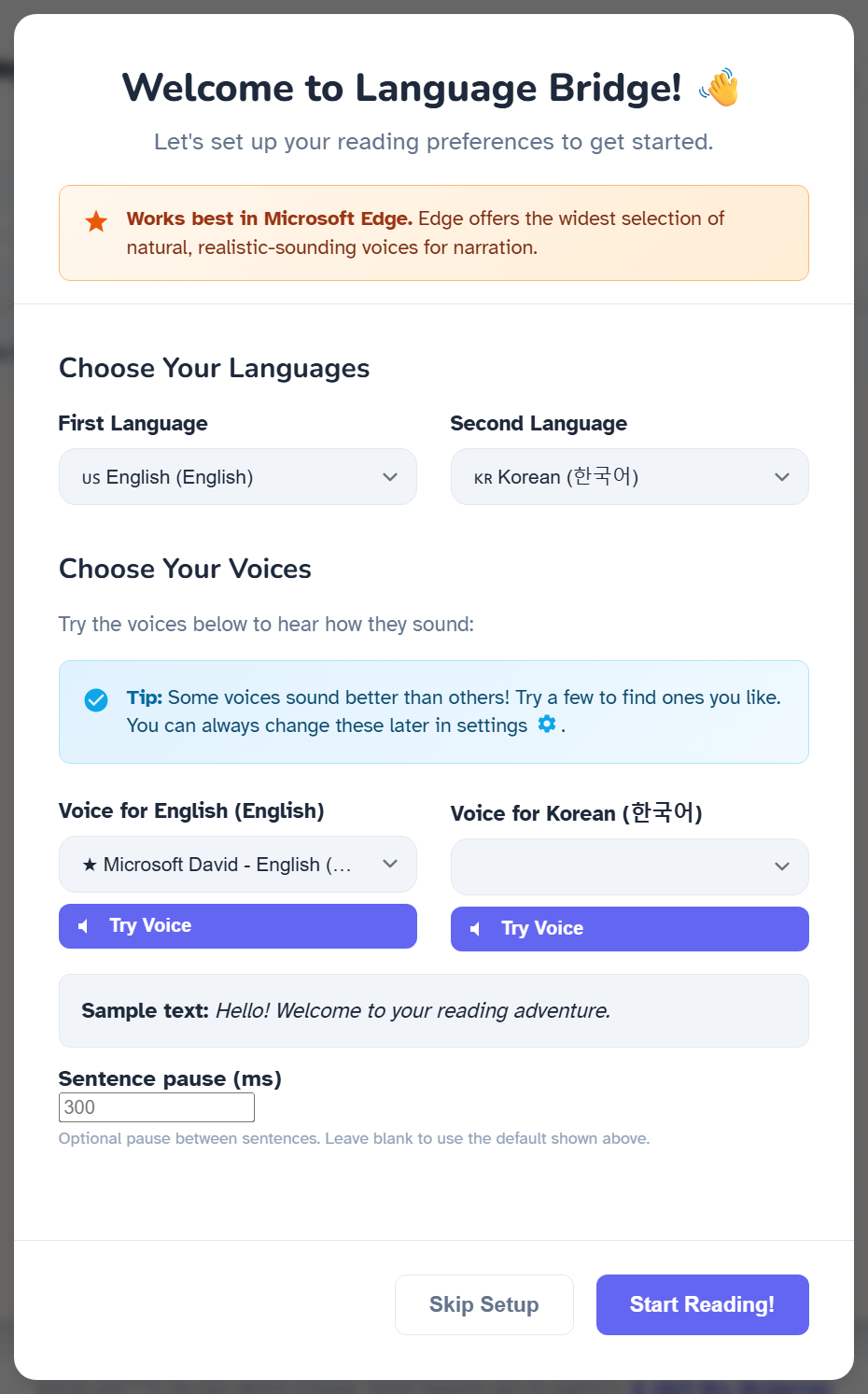
The Welcome screen — pick languages and try voices before you start reading.
📖 The Reading Screen
Once a story opens, English and the second language sit side by side, one sentence per row.
- Play / Pause — starts or stops read-aloud narration from the top of the header, or the floating bar in Focus Mode.
- Tap a sentence — highlights it on both sides and jumps narration there. Tapping while narration is playing pauses it so you can jump around freely.
- Speaker icons (above each column) — choose which language is read aloud.
- Chapters (sidebar) — jump to any chapter in the book.
- Search (sidebar) — find a word and step through every match with the arrow buttons.
- Progress bar — shows how far through the chapter your child has read.
- Focus Mode (the square-brackets icon) — dims everything except the current sentence for distraction-free reading.
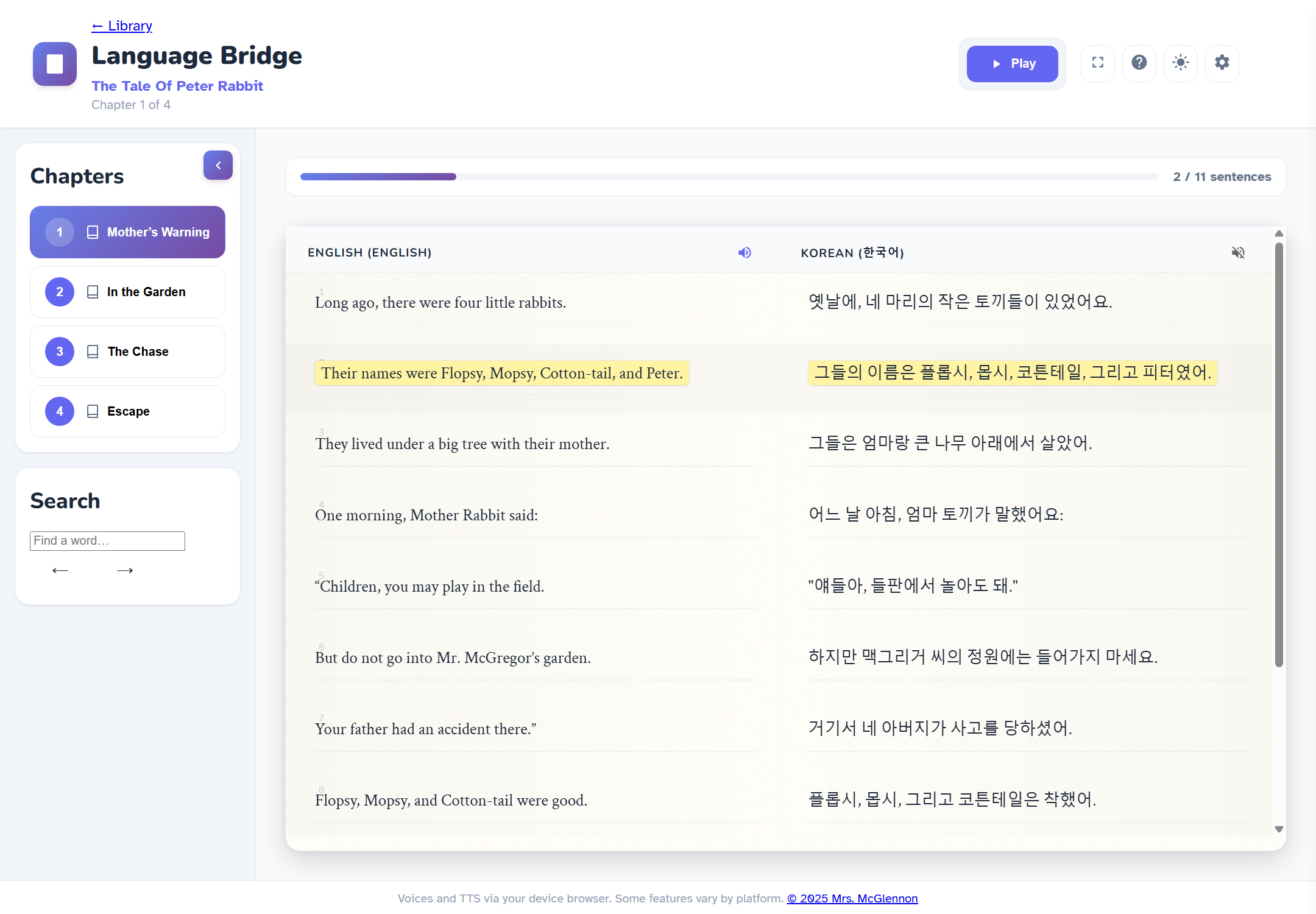
Reading view — tap any sentence to highlight it on both sides.
⚙️ Customizing in Settings
Click the gear icon any time to open Reader Settings, where the Left page and Right page can each be adjusted independently:
- Language — swap which language appears in that column.
- Voice — choose from the voices available on your device/browser.
- Speed & Pitch — slow narration down for newer readers, or adjust the pitch.
- Sentence Delay — a custom pause (in milliseconds) between sentences for that side.
- Data Management — reset chapter-completion tracking if you'd like to start fresh.
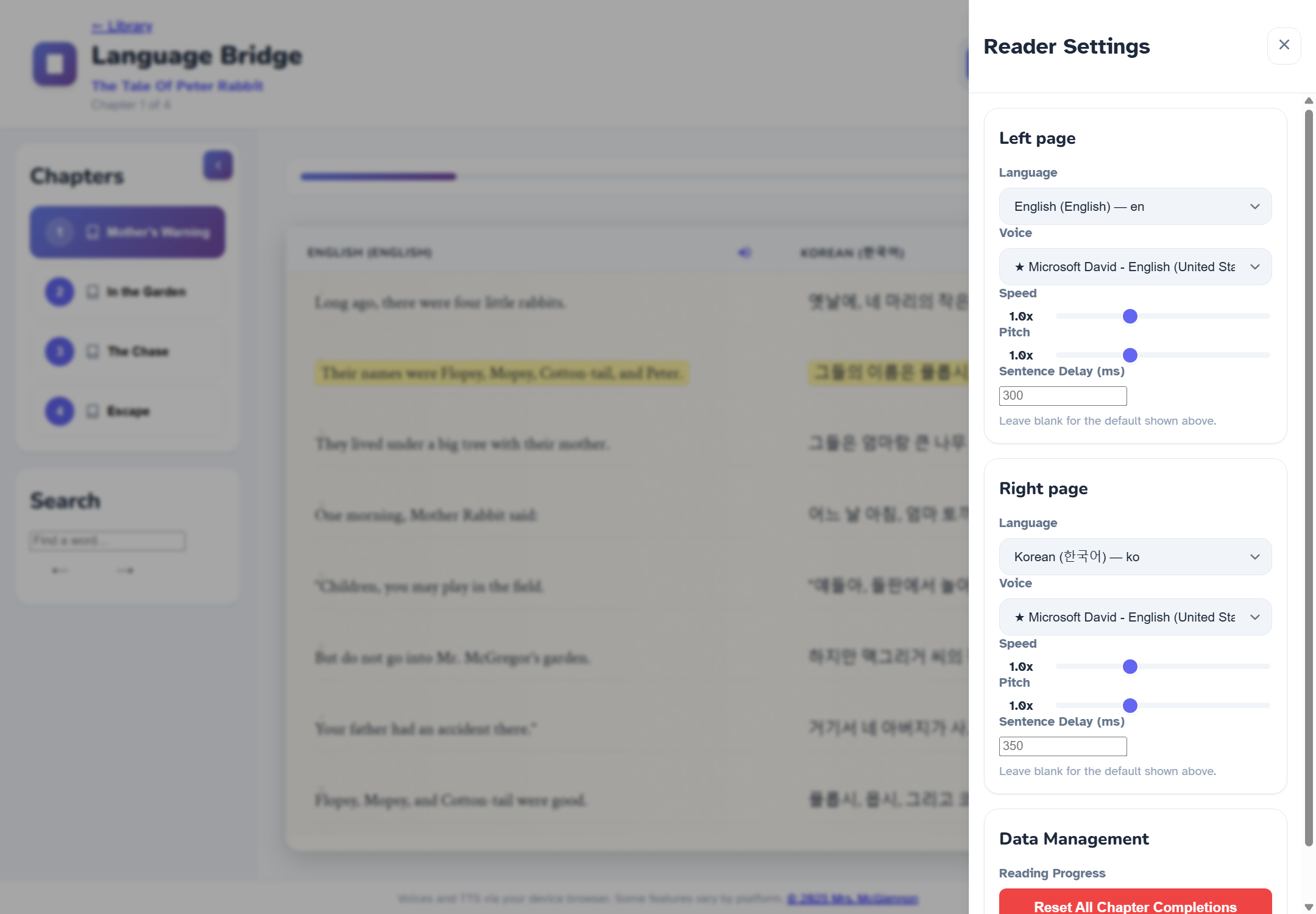
Reader Settings — fine-tune each side's language, voice, speed, and pitch.
The Help (?) icon in the header always has a quick reminder of these controls and keyboard shortcuts.
| Key | Action |
|---|---|
| Space | Play / Pause narration |
| ← / → | Previous / next sentence |
| F | Toggle Focus Mode |
| T | Toggle light/dark theme |
| / | Jump to the search box |
| Esc | Stop narration / exit Focus Mode |
✨ Tips for Parents
- Try a few different voices together with your child — a natural-sounding voice makes a big difference in how enjoyable narration is.
- Slow the speed down and add a longer sentence pause for newer readers.
- Use Focus Mode to cut down on distractions during narration time.
- Language Bridge works best in Microsoft Edge, which offers the widest selection of natural-sounding voices.
- Headphones are recommended for narration in shared spaces like a classroom or living room.
❓ Frequently Asked Questions
Do we need to create an account?
No. Language Bridge is ready to use immediately — no sign-up, no download.
Is my child's progress saved?
Yes — chapter completion and recently opened books are saved on the device and browser used, so your child can continue where they left off.
No voices show up, or narration won't play. What now?
Voice narration uses your browser's built-in text-to-speech, so the available voices depend on your device. Try opening the story in Microsoft Edge, check that the device isn't muted, and try picking a different voice in Settings.
Some books say "Restricted." Why?
A few books are limited to teacher access and need a password to unlock. Most of the library is open for anyone to read without any password.
What is the 🍎 button for?
It's a teacher-only login for managing the library and isn't needed for reading at home.
🖼️ Looking for Curriculum Reads?
Curriculum Reads is our picture-book flipbook library for vocabulary building and Korean bilingual curriculum books.
Read the Curriculum Reads Parent Guide →